EspoCRM integration#
EspoCRM is the primary upstream feeding feedback records into the service. The integration is one-way: EspoCRM calls the qfa backend’s HTTP endpoints; the backend does not call EspoCRM.
What the flows do#
The flows are built as EspoCRM flowcharts in the EspoCRM UI. Their steps are written in EspoCRM Formula Script, a specialized language similar to PHP, embedded directly in the flowchart’s exported CSV — there is no separate .php copy to keep in sync (see Flowcharts below).
The flowcharts compose request bodies based on two distinct workflows.
Single-feedback record flow#
Feedback_saving_flowchart.csv triggers on a feedback record save.
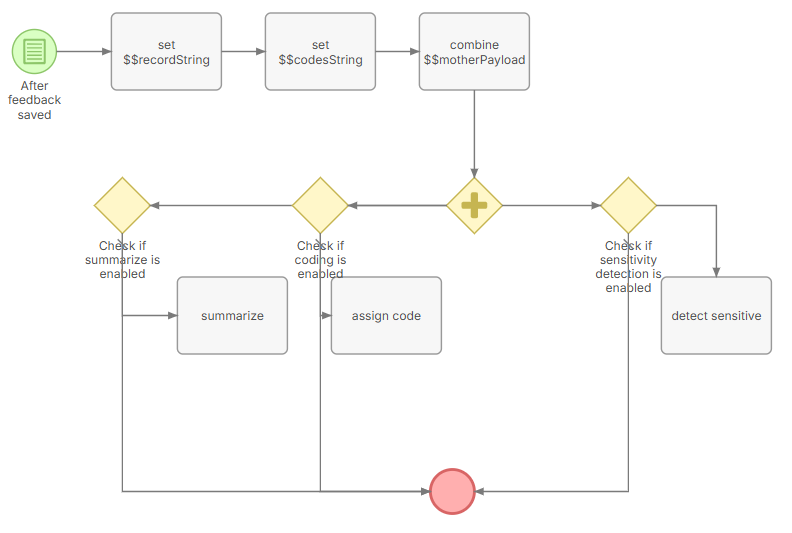
These use all single-feedback record endpoints such as summarize, detect-sensitive and assign-codes. These are all executed at once.
Note: The entire coding framework (all codingLevel1, codingLevel2, codingLevel3 items) is sent to the
assign-codesendpoint. This allows the inference to be stateless.
Insight saving flow#
Insight_creation_flowchart.csv triggers when an insight record is created. This flow selects the endpoint that coincides with the user request, and calls one of the bulk endpoints: analyze-bulk or summarize-bulk.

The two flows build their distinctive motherPayload — a JSON object containing all key-value pairs needed by the endpoints. This holds information about the selected feedback item(s) and their attributes. The attributes are saved as metadata in this flow.
Building a request body#
Build the payload with object\create() / list() and serialise it with a single json\encode(). Never assemble it with string\concatenate(), and never rewrite field values with string\replace().
Concatenating raw field values produces invalid JSON the moment feedback text contains a line break, tab,
"or\. The request then dies in the JSON parser with a 422json_invalidbefore any route handler runs, so no server-side sanitiser can rescue it (issue #245).json\encode()escapes all of these correctly and the feedback text survives intact — see Request body encoding.Fields the API declares non-nullable —
id,content,url_idandmetadata.created— must be coerced withifThen($x == null, $x = '')before serialising.json\encode()emitsnullwhere concatenation emitted"", andnullis a 422.
tests/scripts/test_espo_flowcharts.py enforces both rules against the exported CSVs.
Error handling#
Both flows wrap each outbound call in an EspoCRM error-boundary event. On success, the relevant status field is set to completed; on failure, the boundary runs an “error notification” step instead, which sets the status field to failed and stores the underlying error via bpm\caughtErrorCode() / bpm\caughtErrorMessage(). All of these are plain fields on the triggering feedback record or insight, so the outcome and any error detail are visible directly on that record in the EspoCRM UI — there is no separate error log to check.
Single-feedback record flow#
Each of the three calls tracks its own status field on the feedback record, moving through requested → processing → completed (or failed). The trigger itself only fires while at least one of these fields is requested:
Endpoint |
Status field |
Error fields |
|---|---|---|
|
|
|
|
|
|
|
|
|
The assign-codes step copies assigned_codes.0.explanation into autoCodingExplanation. A record can legitimately come back with no code applied while autoCodingStatus is still completed — that is a successful call, not an error, so it sets none of the error fields. The API guarantees that assigned_codes is never empty, so in that case autoCodingExplanation holds a message beginning with NO CODING APPLIED. explaining why. See the REST API reference for the exact wording.
Insight saving flow#
The insight call tracks a single status field, autoInsightStatus, moving through the same processing → completed (or failed) states, alongside autoInsightErrorCode and autoInsightErrorMessage on failure.
Flowcharts#
The two workflows above are implemented as EspoCRM flowcharts, built and maintained inside the EspoCRM UI. Exports of these flowcharts are stored in scripts/espo_crm/flowcharts/ as CSV files:
Feedback_saving_flowchart.csv— feedback record save triggerInsight_creation_flowchart.csv— insight creation trigger
These CSV files serve as the versioning mechanism: whenever a flowchart is updated in the EspoCRM UI, export a fresh copy and commit it. Promoting a flowchart to staging or production is then a matter of importing the CSV through the EspoCRM UI. The CSV is the only maintained copy of a flow’s formula script — do not add a separate .php mirror, since the flowchart’s data column already embeds the same script and a second copy would drift out of sync.
Backend/flowchart deploy independence: The request
metadataobject accepts a fixed set of keys (created,coding_level_1,coding_level_2,coding_level_3) and rejects unknown ones. It also still tolerates a deprecatedfeedback_record_idkey that older flowcharts wrote into metadata (it is ignored — the record-levelidis the identifier the backend uses). Because of this, a new backend can be deployed without importing updated flowcharts first, and vice versa. New flowcharts should not sendfeedback_record_id.
Version requirement: Dynamic API URL selection requires EspoCRM 9.2.3 or higher. On older versions
QFA_API_BASE_URLcannot be read from App Secrets at runtime and the URL must be hard-coded in the flowchart. Always upgrade to the latest supported version.
Exporting a flowchart#
In EspoCRM, go to Flowcharts.
Open the folder containing the flowchart you want to export.
Select the flowchart and choose Actions → Export.
Select CSV format and check Export all fields.
Commit the downloaded file to
scripts/espo_crm/flowcharts/.
Importing a flowchart#
In EspoCRM, go to Import and select Flowcharts.
Upload the CSV file from
scripts/espo_crm/flowcharts/.Under What to do?, select Create & Update if the flowchart already exists, or Create Only for a fresh environment.
Click Next, then Run Import.

Display output#
The -bulk responses include a backend-rendered pretty_output field — a human-readable text block (quality dots, title, summary) ready to write straight into an EspoCRM field. The formatting lives entirely in the backend, so the scripts do not assemble it.
Its QUALITY/TITLE/SUMMARY headers are localized to the request’s output_language (the same field that drives the title/summary language). Supported languages are English, French, Spanish, Arabic, Russian, Dutch, and Ukrainian; any other or absent value falls back to English headers.
Hyperlinking feedback records in insight text#
When the motherPayload for analyze-bulk or summarize-bulk includes espo_feedback_base_url and each feedback record’s url_id, any mention of a record’s id in the generated insight text (analysis or summary) is rewritten as a markdown hyperlink back to that record in EspoCRM — see REST API § Hyperlinking feedback records for the exact mechanics. This flows through pretty_output automatically, so a markdown-aware EspoCRM field renders it as a clickable link with no extra flowchart step. Older flowcharts that don’t send these fields are unaffected — the output stays plain text.
Authentication#
EspoCRM stores the bearer token as a server-side secret. Provisioning and rotation use the standard flow in API key management.
Within your EspoCRM instance, set the following values under Administration → App Secrets:
Secret |
Value |
|---|---|
|
Base URL of the QFA backend for that environment, e.g. |
|
Bearer token for the QFA instance |